Description:
Save Big on Coursera Plus. 7,000+ courses at $160 off. Limited Time Only!
Grab it
Learn how to design a custom box for the Raspberry Pi Pico board using Fusion 360 in this comprehensive tutorial. Follow a step-by-step process to create a parametric housing design that can be adapted for any board. Begin by setting up the project and importing the RP2040 board 3D model. Progress through creating the top housing, standoffs, walls, and openings for connectors. Add mounting brackets, LED holes, and rounded edges for a professional finish. Incorporate the Raspberry Pi logo and design the bottom housing. Conclude with exporting the design for 3D printing and view the final printed product. Gain valuable insights into CAD design techniques and Fusion 360 functionality throughout this hour-long guided project.
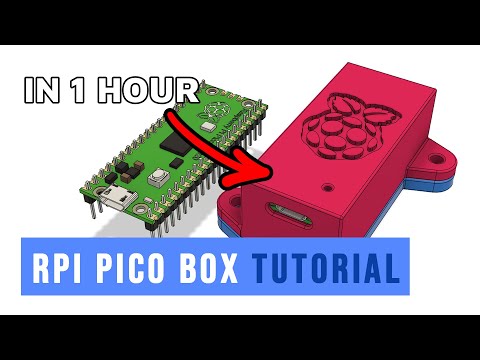
Raspberry Pi Pico Box Design Tutorial in Fusion 360
Add to list
#Engineering
#CAD
#Autodesk Fusion 360
#Art & Design
#Digital Media
#3D Printing
#Business
#Product Design
#Parametric Design
#Computer Science
#Internet of Things
#Raspberry Pi
#Raspberry Pi Pico