Description:
Learn to design and create a customizable cardboard box using Autodesk Fusion's sheet metal tools in this 20-minute tutorial video. Set up a new sheet metal rule for cardboard, utilize the flange tool to construct the box shape with adjustable parameters, and create a flat pattern for export or manufacturing. Perfect for commercial packaging designers, hobbyists, and educational users, this project offers practical application of sheet metal modeling techniques while resulting in a useful design. Explore advanced features like exporting as DXF, accessing the flat pattern in the Manufacture workspace, and adding custom elements to enhance your cardboard box design.
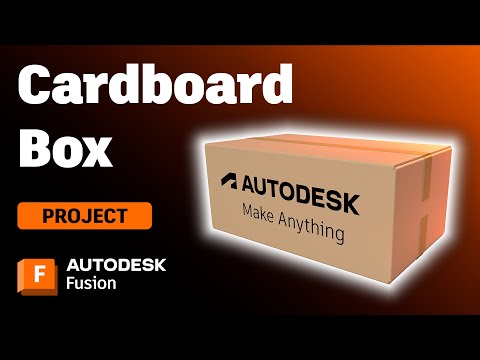
Designing and Making a Cardboard Box in Autodesk Fusion
Add to list
#Engineering
#CAD
#Autodesk Fusion 360
#Manufacturing
#Parametric Design
#Art & Design
#Design & Creativity
#Graphic Design
#Packaging Design